blending effects
The flash Magic Banner is created dynamically by overlapping four layers:
the text layer, the image logo layer, the animation effects layer and the background layer.
In order to enrich the possibilities of flash Magic Banner online application
a blending module has been created.
Thus you can apply different blending to each layer mentioned above.
The result will be a variety of effects that may amaze each time.
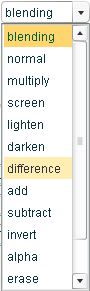
To apply blending to a layer just select it from the selector panel and choose
a bending mode from the drop-down menu placed in the upper right side
of the application.
example:

On the left side a preset background, on right side the same background
with a "difference" blending mode.
Check out the showcase section of the site to see other examples.
Get next to:
The flash Magic Banner is created dynamically by overlapping four layers:
the text layer, the image logo layer, the animation effects layer and the background layer.
In order to enrich the possibilities of flash Magic Banner online application
a blending module has been created.
Thus you can apply different blending to each layer mentioned above.
The result will be a variety of effects that may amaze each time.
To apply blending to a layer just select it from the selector panel and choose
a bending mode from the drop-down menu placed in the upper right side
of the application.
example:
On the left side a preset background, on right side the same background
with a "difference" blending mode.
Check out the showcase section of the site to see other examples.
Get next to:
advertisement

what's new
Magic Banner logos and effects have been updated with seasons theme.
Get now a Christmas time banner.
Get now a Christmas time banner.
